Showing posts with label differentiation. Show all posts

Monday, June 23, 2014

Why and Try - A Reflection

Last week, I went to iPadpalooza in Austin, TX.  While there, I learned some new things and participated in “The App-mazing Race” – a contest among participants where we had to complete various challenges and make a two-minute video.  We didn’t win anything, but it was a lot of fun!

Denise Coffin and I presented a session called “Why and Try”.  We talked about the importance of helping kids name different types of thinking and then document their progress, emphasizing that the process is more important than the product.  

In the spirit of trying new things from the conference, I have created a “Smore” – an online poster – of our session below.  Enjoy!


Wednesday, June 18, 2014

Blogging about Blogging

It's been awhile (6 months - yikes!) since I've posted.  I have several drafts saved, but nothing published yet. Where did all the time go? I need to figure out how to maintain my blog entries while teaching at the same time.  Here's to a summer filled with time to complete a few reflective entries!

This school year was my first adventure with personal blogging, but also blogging with kids.  The whole experience has been wonderful and I highly encourage other educators to dip their toes into the blogosphere.  I have learned a whole lot and am excited about doing a second year in the fall with my students.

Working with our Idea Lab Coordinator, I set up a class account on KidBlog.
 I like KidBlog for many reasons:
1) They have a great app for the iPad which is wonderful in a 1-1 iPad setting
2) The kids don't have to have an email address to use this site or provide any personal information
3) Teachers have administrative control over all the student blogs allowing them to invite parents and others if and when needed.
4) The blogs are private, unless the teacher makes them public.
5) The site allows students to create video or text entries - LOVE!

Check it out: Kidblog.org

Prior to launching into writing entries we had discussions about our digital footprints.  These discussions were powerful and I intend to "beef" them up next school year.  We talked a lot about the lasting impression of our words online.  I wanted the kids to be thoughtful about what they wrote and how they presented themselves to their classmates and any others that might see their blog. We talked about how the presentation of their content was important and would leave readers with a lasting impression on who they were as a learner.  What lasting impression did they want to leave?

Stealing an idea from my colleagues, we started our blogs - on paper. Yep. Paper.  Baby Steps!
The beauty of the paper blog is that everyone could see all the blogs around the room at one time.  It was also a wonderful way to discuss commenting.    What was a productive comment?  What would be considered helpful or hurtful?

Our paper blogs had a border around the outside that the students decorated at home as an expression of themselves.  Then, the students wrote an entry about a small moment in their lives.  We brainstormed suggestions about what to draft and since we did this right around Halloween, many of the entries were about favorite costumes or trick-or-treating.  Once all the entries were complete it was time to read each other's work and comment.  We used post its to write our comments and off we went.


The kids loved this process but the best part was the reflection at the end. All of the students took the time to read their classmates' comments and then we came together.  I asked them, "What did you think about the comments?" We ended up with this chart:
This lesson is a keeper! When we went on to online blogging, the kids were aware of how their comments would impact the author.  One suggestion for myself for next year is to do this lesson again after they have had experience posting and commenting. I think that would elevate the comments even farther.

Getting up and running with KidBlog was super easy and the kids took to blogging like champs!  I invited the parents to join our blogging community by creating an Explain Everything movie with step by step instructions about how to sign in and comment.  To be honest, very few parents checked the blog, but when they did  leave comments, the kids were ecstatic!

When we first started blogging I had a lot of controls up. For instance, I made it so that I read every comment before it was posted.  I told the students that putting on those controls was similar to training wheels. I just wanted to make sure we were all in the same mindset.  One of my more witty students wrote the following comment:  "This is very fun but I hope you let go of the bike later and let us make decisions on our own."  

Hmmm.  Good point - thanks Nan.  So, I took off the controls and off they went.  I spot checked all the comments, but there was never a problem.  Sometimes a student would leave an inadequate comment, but the kids would call each other out and state that the comment needed more development.  Parents were even chiming in to their own child's blogs - which the kids LOVED.

The Aha! Moment 
What I quickly realized is that KidBlog wasn't for me to assess work or to see how well they were writing. Kidblog was about the kids.  It became an online extension of our classroom community where the students could share ideas, comment on work - have a conversation.  It is a beautiful thing.

Some of the posts we all did:
Reading Fluency
The kids used the video capture to record themselves reading their current read aloud.  After listening to their reading, the wrote a reflection on what they noticed and set a goal for the next trimester.  We did this twice in the year.  I would definitely do it more often.

Book Sharing and Reflections
After finishing each independent reading book, they posted a summary/book intro and a short reflection about the story.  It was a great way to track their independent reading but also a huge resource for the class to discover new selections.


Digital Portfolio
I'm still messing around with the best way to collect and share student work so we used KidBlog as part of this process creating a digital record of some of their work.  We posted pictures and/or videos of the projects kids shared with their classmates.  So, during the presentations the kids took notes and wrote down questions for their classmates. I made sure to take a picture of them and then airdropped it to their iPads.  Afterwards they uploaded their picture (and sometimes their presentation if it was a video) creating a new post.  Then the whole class added their comments for each of their classmates.  This kept their presentations alive long after the actual presentation.

Blog Mentors
One of our favorite blogging activities was helping a 1st grade class get acquainted with KidBlog.  The 4th grade students mentored a first grader and helped them log in for the first time.  The mentors helped the 1st graders create a video post as well as add their picture and change the background to personalize their blog.  Winner Winner Chicken Dinner!  We definitely plan to do it again next year!

So, there is my year of blogging with kids.  I'm super pumped about the next year and know that we will continue to explore KidBlog and how it can enhance our 4Z learning community! One idea I'm working on is connecting with another classroom and allowing online buddies to share blogs.  I have a friend that teaches in Hong Kong so this would also create a global aspect that is intriguing.

The sky is the limit!

Carrie Strine
http://theclassroommuddler.blogspot.com
Twitter: @carreenstrine

Wednesday, December 11, 2013

Choice

It’s been two weeks since I've returned from the EdTech iPad Summit in Boston.  The two professional days were extremely intense - but in the best possible way.  Weeks later, and I still find myself processing all that I saw and heard.  I’m amazed and in awe of what some teachers are doing in their classrooms. It’s all so exciting and stimulating - it’s hard to even know where to begin.

My biggest takeaway from the conference though can be summed up in one word - Choice. 

The iPad is an amazing tool with so many possibilities - so many choices.  But here’s the thing - the choice isn't all mine.  The kids have choice as well.  I don’t have to decide ahead of time what app the kids will use. They can do that all on their own - and often in a WAY more effective way than I could have imagined.

My goal for the next few weeks is to explore:
  • Subtext  - Super excited about using this for small group work in our research unit.
  • App Smashing- Okay, I’ll admit, this session was mind-blowing! But I got home and tried to do it and was totally unsuccessful. I love this idea and I think the kids will take this and run with it.
  • ThingLink - LOVED this - but need more time to explore and make something.  I’m not sure this is super useful for our kids, because the app isn't as smooth as the online interface.
  • Flipped Classroom - I need to get on this.  I love this idea, but once again, need time to make it all work.
My exploration needs to include my students, because let’s face it. They are WAY more adept at picking up how to use the apps on the iPad.  AND - they love being able to help their classmates (and their teacher).  Tech Tuesdays, something I've been doing for several weeks, will feature these apps.  I know the kids will get it sorted out.


Here is example of how choice can work - 
Two girls in my class are reading partners and both have been drafting a literature reflection in Google Drive.  One of them noticed the comment button and figured that since they can share their documents with me, they could also share their documents with each other.  So, as part of the revising process, they started commenting on different sections of each other’s papers.  I just so happened to discover this while I was at the iPad conference. Between sessions I “looked in” on the literature reflections that they were working on in school while I was at the conference.  

Check out this comment:  
I almost cried when I saw it.  When I got back from the conference I asked them if they could share how they were revising each other’s papers.  They were excited and enthused, but alas, time kept getting in the way.  So, then they asked if instead of just presenting in front of the class, they could use Explain Everything to show their process. They thought it would be easy to document their comments on the camera, and then talk through the process on that app.  What? How do they know about App Smashing? They mentioned that I could put it on the class website so their classmates could watch it at home.  What?  How do they know about a flipped classroom??  


Choice.  It works.

Carrie Strine
http://theclassroommuddler.blogspot.com/


Tuesday, May 14, 2013

Striking the Right Balance

Our 4th grade studies ancient Chinese history along with an introduction to Chinese culture and language.  We recently finished a project looking at Ancient Chinese inventions, one of which is a set of tuned bells.  2500 years ago, craftspeople in China were able to create large, beautiful sets of bronze bells that each had not one, but two tones depending on where they were struck.  There was mastery in creating the tool, and also mastery in playing it.

Our year in iPads has been like that.  We have discovered that the iPad is an incredible personal and educational tool, masterfully thought out and created.  In the hands of our children and teachers, powerful experiences are possible - but only when the device is well played.


I recently had a conversation with a concerned 3rd grade parent who had good questions about how we use iPads and valid concerns about how our program will grow in the coming years.  It dawned on me that she didn’t need a demonstration and sales pitch about the iPad itself.  What she needed was reassurance that I, as an educator who would potentially use this technology with her child, knew how to use it well.  Of course creating a host of online addicts who can’t break away from their screens to have a coherent conversation with live people at the dinner table is not on my list of goals for our 1:1 program.  But how do I enthusiastically experiment with technology while demonstrating restraint?  How do I promote our program while supporting the wisdom of moderation and limiting screen time?


It feels good to reassure parents and colleagues that, as experienced educators, we are always starting with “why” when making a decision to use or not use these devices.  We just use them frequently because as it turns out there is a lot of work to be done in 4th grade and an iPad (along with Haiku, Google Drive, and our email system) allows us to do some of that work more easily, more conveniently, and more creatively.   Of course we still draw, paint, practice handwriting, use paper, sharpen pencils, and read books because sometimes those processes are more meaningful and more effective.  As it turns out, when seeking to inspire neither digital addicts nor luddites, what feels really good is balance.  We talk about balance explicitly with our students as part of our digital citizenship curriculum so it makes sense to live it in the classroom.  


Another guiding principle in deciding who, what, where, and when about the iPads is consumption vs. creation.  We try not to consume very much on our devices in class since generally that feels passive, less worthwhile, and more like the gratuitous use people are afraid of.   You might say we don’t really like that tone so we still use paper packets and copied math homework. We could put them online, but that might not be the best use of our students' screen time.  Instead we have learned to lean toward opportunities for students to create, to choose how to express themselves, and to share and document their work.  What results are processes that are unrestrained by medium because we can choose from the best of both online and offline worlds, mixing and matching them to suit student and teacher needs.  


For our next research project on daily life in ancient China we will research using books and take notes on paper.  We will draft pieces in our writer’s notebooks then type, share and edit in google drive.  In addition to performing the resulting historical fiction monologues for each other live, students might choose to record them in iMovie or to create a Telligami video.  At this point in the year, we enjoy considering all of our options and striking a spot that hits just the right note.  


Saturday, April 13, 2013

Reaching Redefinition and Nurturing Passion

The EdTechTeacher iPad Summit in Atlanta has been another wild ride through all kinds of amazing ideas for learning with iPads, and many deep thoughts about learning goals and putting students in the center of their learning. It is too soon to know what will filter out as the most significant messages from these packed two days, but there are two big ideas that immediately come to mind.

Reaching Redefinition

We met Dr. Ruben Puentedura at the Leveraging Learning Institute iPad conference in Maine in November, 2011. The conference was small and Ruben could often be found deep in thought, alone at a table. My colleague and I were relentless about sitting with him and grilling him on all the topics we could manage. We left with our heads full of information and audacious goals about elevating our integration of iPads in our classrooms.


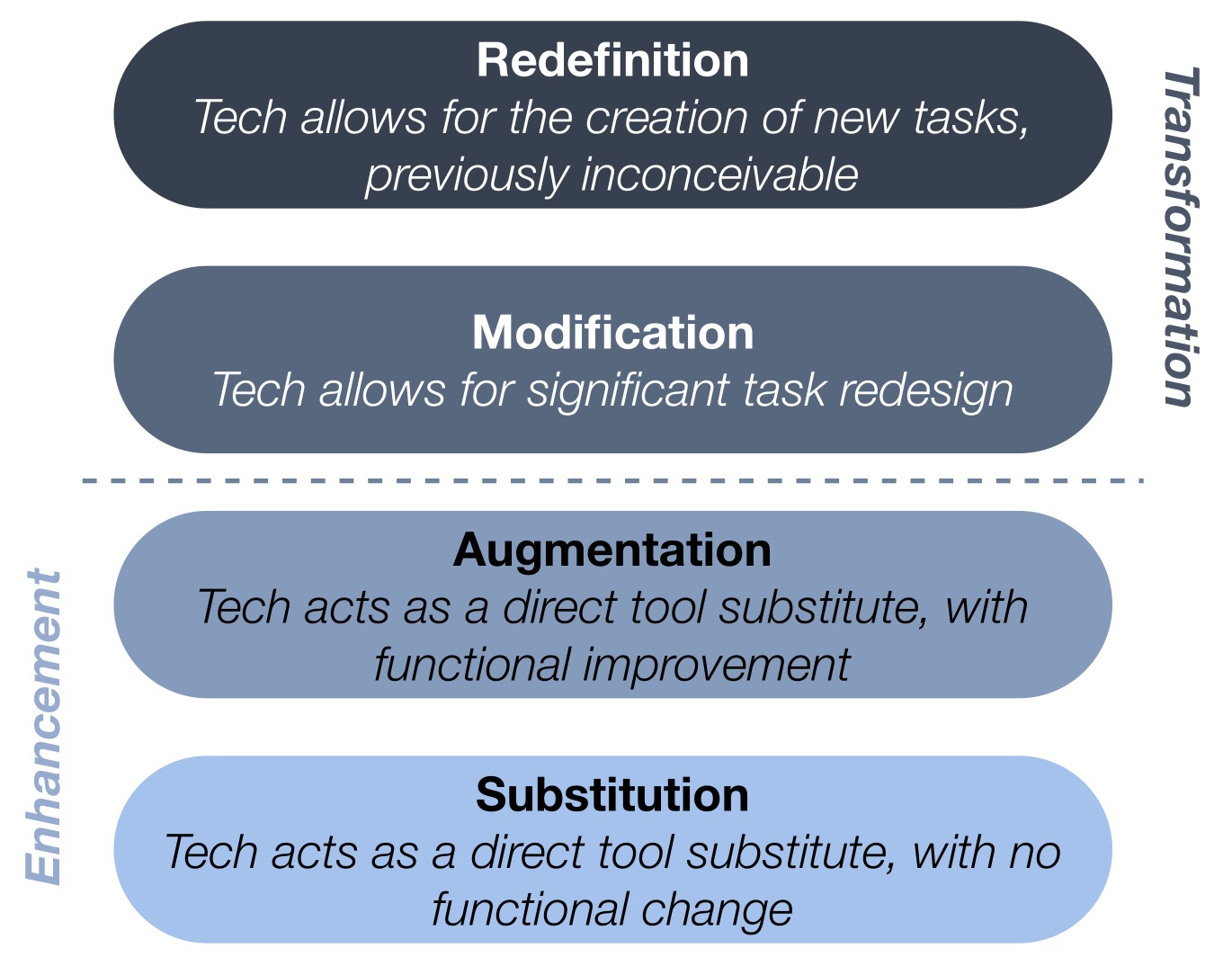
We got back to school with the SAMR model and began to look through that lens at our iPad integration. There were many examples of Substitution - students typing papers on iPads, or reading websites for research. There were some classes moving up the list to Augmentation, for instance posting materials on our Haiku pages to upload and use in a PicCollage project and Book Creator projects that include student narration and artwork. We have even reached Modification with some storytelling projects. But truly achieving Redefintion has challenged us in many ways. These types of projects are usually glorious, messy, engaging, and often unending - once you set the students loose absorb them for countless hours. iMovie trailers to teach peers to use Screen Chomp, iStopMotion projects to illustrate the growth of a redwood tree - mash ups of those and other apps in Explain Everything. Wonderful, noisy, chaotic class periods that bleed into recess and never seem to be done to the student's satisfaction. What does Redefintion lead us to? Discovering and nurturing passion!

Nurturing Passion

Angela Maiers' opening keynote, "Passion - the Difference Maker" started us out with enthusiasm for our role as educators, and empathy and appreciation for the genius in all those around us. Indeed, if we are to truly see the world as she does, then we will "honor people, always act as if the person sitting next to you has genius. Your (student or colleague) has a thought or idea that could change your life, remember that you are in the presence of genius." What would a classroom that had that belief at its heart look like? I think it would look like those crazy, messy class sessions we have had when every student was in the midst of expressing what they know, making their learning visible, using transformative tools that redefine class projects. This is passion with a purpose. Students who are allowed to act on their passions are happy, engaged and willing to take on difficult challenges as they joyously struggle to complete a project or reach a goal. When we nurture passion we redefine what it is to create and learn.

Tuesday, March 12, 2013

A Few Problems, Many Solutions

At this point in the year, the iPads are pretty integrated into our class's curriculum and daily routines.  We have prioritized exploring what we call "creativity apps" as opposed to games and apps with a singular focus.  Meanwhile in math, our class has begun utilizing Exemplars problems and rubrics to further student problem solving, math thinking, and math communication (see Merry Melvin's previous post for more on assessment).  Each problem is rich with multiple questions, levels, and solutions, and our students are finding them appropriately challenging.  We gave them free range to decide how to present their work.

Here are some solutions from the one about predicting the number of Sweethearts in a box:


And the one about planning the sleeping arrangements for class camping trip:


And our most recent problem about carpeting a basement:


Each solution requires a written explanation and a visual representation.  Some students decide to use the iPad to prepare both.  Some students use different apps depending on what they are being asked and some have a favorite they choose consistently.  Some students create their graphs and diagrams using physical materials such as Base Ten blocks or  tiles or puff balls and then document or enhance them by importing a photo.  Some students are comfortable emailing us their work and some students prefer working offline and turning in physical products.  We remain open to all of their preferences and meet them in their comfort zone.

While it was no surprise that many students elected to use their iPads to prepare their final solutions we were fascinated by the range of apps children chose.  Through regular explorations and many months of projects, Drawing Box, AiWriter, Educreations, Explain Everything, Keynote, and Inspiration Maps have become familiar friends. Left to their own devices, students have to decide whether the iPad and our creativity apps are the "right tool for the job" and which tool will serve them best.

Of course we do have some students who insist that the iPad is the best tool for them and it's really not .  But after a few experiences of being distracted and not completing their work on time, they learn that lesson too and change tactics.  At the beginning of the year, we set a few goals for our 4th grade 1-1 iPad program and progress is visible on many fronts.  To me, these are examples of students taking charge of their learning and our classroom becoming a place that fosters and supports creativity, independence, differentiation, and meaningful assessment.

Wednesday, February 13, 2013

Assessing to Strengthen Learning and to Support Teaching


While we have always had the ability to look at student work for evidence of learning, various Apps are giving us all the more reason to be learning to assess in an increasing number of formative ways. Not only can we use assessment to steer our instructional decisions, targeting instruction and/or differentiating subsequent math learning times based on evidence of student learning; we can set up routines so that the students can self-assess and support one another, simultaneously bolstering their metacognitive skills and math thinking, as well.

ScreenChomp, Explain Everything, Showbie, and Educreations are examples of some of the Apps my colleagues are using in math class to have students explain their math thinking. When a student records his or her explanation of how he or she solved a problem using one of these Apps (or on paper), that student reveals all sorts of evidence of their learning. The beauty of these Apps is that they include the student’s voice overlapping with what they have written and/ or drawn. From our experience, it seems the students are more likely to go over and revise their recordings and written work, which was more like “pulling teeth” when just paper, was involved. For many of them, each time they re-record, they clarify their thinking and hone their ability to articulate mathematical ideas.


Can we scaffold this process to ensure the students can become even more facile in communicating their math thinking? I think the answer to that is yes. We can give the students check lists and rubrics to guide their work.  Not only can we provide rubrics, so they know the components to focus on, we can set up partnerships wherein they can peer conference with one another and collaboratively strengthen their understanding and ability to communicate that understanding.

There are many sources for rubrics online and we can create our own.  The best thing about choosing and developing these assessment tools is that it forces us to think deeply about our teaching. The standards-based Exemplars rubric prompts us to look at the students’ work in five ways:  Problem-Solving and/or basic Understanding, Reasoning and Proof, Communication, Representation, and Connections.  To help students assess their understanding of a problem, as teachers we can ask them (or their peers can ask them): What do you know and what are you trying to find out? What strategies are you going to try and why? What tools do you need?  Could there be more than one solution? Could you solve this problem two different ways? To help students explain their reasoning and proof, we can ask them (or their peers can ask them): Does that make sense? Why is that true? Is that true for all cases? Could you prove it? Can you think of a counter example?  To help students communicate clearly, we often remind them to use their mathematical vocabulary and to describe their thinking with words, numbers (equations), and pictures, diagrams, models or graphs. We often have to prompt them to create a diagram, make a table, use a number line, put things in order, or act a problem out.  In order to encourage students to make connections, we need to give them time to be reflective. We can ask (and they can ask one another): Does this remind you of other problems we have solved?  How does it relate to ………..? Why does your answer seem reasonable? Do you see a pattern? Can you explain it?

In making check lists and rubrics to scaffold our students’ efforts to explain their mathematical thinking, we ourselves can think about how much time we spend developing mathematical thinking with effective questioning in our classrooms. When we are asking good questions, we are modeling thinking strategies. As we are making our thinking visible, we are highlighting the ways our students think and explain their thinking. We also can use models, diagrams, drawings, graphs, and equations to show how we are thinking and how we imagine our students are thinking. We need to listen carefully to honor our students’ thinking authentically.  Elementary school age students need daily exposure to representations of mathematical ideas before they can create these independently.

One of the best results of the iPad program in 4th grade at our school has been its inherent student-centeredness. The students now have the ability to communicate their mathematical thinking both orally and by drawing and writing as well as the ability to easily revise and refine their work.   They feel empowered when they use these Apps to explain their mathematical thinking.

Let it remind us again as teachers to continually reflect on our teaching when we look and listen to that student’s work for evidence of learning.  Teaching ≠ learning: in other words, just because we “taught it” does not mean the students “learned” it.  Assessments can reflect many nuances in student understanding and inspire many forms and variations of differentiated,  intentional  instruction.  

Friday, November 18, 2011

Evernote!

Evernote is a great tool for classroom documentation.

It used to be that the other kindergarten teachers and I would walk around the classroom with a clipboard and scribble notes about student learning, thinking, challenges, and any other skill or ability that our children were demonstrating. By the time report writing came around, I had amassed quite a stack of scribbles and post-it's. It was really nothing that I could share with anyone until after I spent some time sifting through the scribbles and writing drafts of my reports. Using Evernote on our iPads, we can do more and we can share it all. Having created one Evernote folder for each student, I can now walk around the classroom as learning is happening and capture the students articulating their thinking. Evernote allows teachers to type notes, take photos, upload photos, and record audio.

Now, using Evernote, I am able to take a photo of a student's work, and then have a conversation with her as I record her thinking. I can make her thinking visible. (to me, to her, to another teacher who was not present, even to her parents if needed)

Using tags, I can come back later and search for a particular student's work. I can search for all math pattern work or all reading levels or any other category of learning that I tag to find out how we are doing as a whole class. I can save emails and documents that pertain to a student's learning or challenges in their individual Evernote folder.

I can take notes during parent conferences - using my tablet pc and Evernote I can even ink notes in Evernote during meetings and conferences. (dear Evernote, please make inking possible on the iPad version...)


Why this is a good idea:
-use evernote to snap photos of students at work and then write your notes directly onto the note for that photo
-use a new note to compose thoughts for reports from anywhere in your classroom, another classroom, on a field trip, anywhere
-use audio recording in evernote for classroom documentation, both student-led and teacher
-create a folder in your evenote binder for each student at the start of the year
-use evernote to add other documentation on each student as needed - emails, documents, photos, etc.
-open your evernote folders from any computer to write reports or updates or to check for assessments
-share your folders with other teachers, support people as needed
-keep every artifact about your students together, paperless, and accessible from anywhere

Tuesday, September 27, 2011

iPads as table easels

A new idea!


This week the iPads came in extremely handy as we used them in a brand new way - something we did not anticipate using iPads to accomplish. The children were asked to copy something from one easel we had in the room. (a weekly activity) Since the children are spread out at various tables, they usually need to wait for the easel to "travel" to their table in order to take their turn copying down a message.
We decided to use the iPads to make the easel work more accessible to all the children. We took a picture of the easel on a number of iPads and set the iPads in front of those children who weren’t in direct eyesight of the easel. This helped us manage our children and our time in a much better way! Everyone got to work on the project simultaneously. As a class, we were able to finish earlier than we normally would and move onto our next activity.
The iPads could be used as this type of table easel for almost anything that requires student examination. We'll likely use this same idea for art discussions, community meetings, word wall words, etc....
Below is an example of our students using the iPads as individual easels:

Tuesday, September 20, 2011

Introducing the iPads to the students!


In KX, we found it extremely important to have an orientation (10-15 minutes) with the children on how to handle the iPads. Our assumptions were that the children would be so familiar with iPads (seeing as how prevalent they are in many children’s homes) that they would just jump into using them. What we discovered very quickly was that using mom or dad's iPad for games requires different skills/knowledge/care than using them in a targeted manner for our enrichment activities.
Our observation was that many children put their entire hand on the iPads and weren’t accustomed to dragging their fingers over the screen yet. They were unaware of how to open the lid to create an "easel." They needed to be taught how we want them to begin or approach the iPad - in our case, we have the covers closed and want the students to wait for instructions, then open and begin with an app that we already have open. They also needed to practice ending their iPad time - clearing their work and leaving the app open at it's starting point for the next group. We worked with a small group of six children at a time and we modeled the proper uses of the I-Pad by demonstrating right in front of them before they tried it on their own. By the end of the orientation, the children were using their fingers properly and were onto trying out the fantastic programs we have for them!
We decided to open this introduction and exploration session using the DoodleArt app. This video shows the students trying out their first app.