Showing posts with label apps. Show all posts

Wednesday, December 11, 2013

Choice

It’s been two weeks since I've returned from the EdTech iPad Summit in Boston.  The two professional days were extremely intense - but in the best possible way.  Weeks later, and I still find myself processing all that I saw and heard.  I’m amazed and in awe of what some teachers are doing in their classrooms. It’s all so exciting and stimulating - it’s hard to even know where to begin.

My biggest takeaway from the conference though can be summed up in one word - Choice. 

The iPad is an amazing tool with so many possibilities - so many choices.  But here’s the thing - the choice isn't all mine.  The kids have choice as well.  I don’t have to decide ahead of time what app the kids will use. They can do that all on their own - and often in a WAY more effective way than I could have imagined.

My goal for the next few weeks is to explore:
  • Subtext  - Super excited about using this for small group work in our research unit.
  • App Smashing- Okay, I’ll admit, this session was mind-blowing! But I got home and tried to do it and was totally unsuccessful. I love this idea and I think the kids will take this and run with it.
  • ThingLink - LOVED this - but need more time to explore and make something.  I’m not sure this is super useful for our kids, because the app isn't as smooth as the online interface.
  • Flipped Classroom - I need to get on this.  I love this idea, but once again, need time to make it all work.
My exploration needs to include my students, because let’s face it. They are WAY more adept at picking up how to use the apps on the iPad.  AND - they love being able to help their classmates (and their teacher).  Tech Tuesdays, something I've been doing for several weeks, will feature these apps.  I know the kids will get it sorted out.


Here is example of how choice can work - 
Two girls in my class are reading partners and both have been drafting a literature reflection in Google Drive.  One of them noticed the comment button and figured that since they can share their documents with me, they could also share their documents with each other.  So, as part of the revising process, they started commenting on different sections of each other’s papers.  I just so happened to discover this while I was at the iPad conference. Between sessions I “looked in” on the literature reflections that they were working on in school while I was at the conference.  

Check out this comment:  
I almost cried when I saw it.  When I got back from the conference I asked them if they could share how they were revising each other’s papers.  They were excited and enthused, but alas, time kept getting in the way.  So, then they asked if instead of just presenting in front of the class, they could use Explain Everything to show their process. They thought it would be easy to document their comments on the camera, and then talk through the process on that app.  What? How do they know about App Smashing? They mentioned that I could put it on the class website so their classmates could watch it at home.  What?  How do they know about a flipped classroom??  


Choice.  It works.

Carrie Strine
http://theclassroommuddler.blogspot.com/


Monday, September 23, 2013

iPrep for iPads: Apps To Invite Back

iPad Rollout Day!  4x is super geeked for the introduction of iPads today.  It is the beginning of a journey with this class to collaborate more, create more, and learn more.  There were so many highlights of piloting 1:1 iPads in 4th grade last year.  Some of them were hard earned successes seeded by careful plans, but most of them were unexpected surprises.  What will inspire, excite, and obsess this year's class?  We don't know yet, and so we will try to leave room for everyone to discover something new.

What we do know is that not all apps are equal.  There were some that sparked our students' imaginations and others that fell flat.  Some that provided valuable skill practice and others that weren't worth the free download.  So which apps are being invited back?  Here's our short list:

Creativity Apps: open ended, good for any subject

Book Creator
Chalkboard
Drawing Box
Educreations
Explain Everything
iMovie
iStopMotion
Keynote
Pic Collage
Strip Design
Telligami

Productivity Apps: for getting the work done

Google Drive
I-nigma QR code ereader
Inspiration Lite
KidBlog

Exploration Apps: for seeing new things

Google Earth
Star Walk
Solar Walk

Tools and Resources: 

Geoboard
Landforms

Games and Puzzles

Big Seed
Bumpling
CargoBot
Kickbox
Move the Turtle: Programming for Kids
Math Doodles
SymShuffle
Slice It!

There are a few fan favorites that our class doesn't plan to use with students this year: Evernote, Skitch, Notability etc.  Some of these we tried, and for various reasons, they didn't work out.  Some we don't need because we can do something similar with another program that we like better.   On the other hand, a comeback might be just an update or project need away.  Instead of spending a lot of time investigating new apps this year, we want to find more innovative ways to use the apps we have, especially if they are open ended and multifaceted.  (We will take recommendations so if you think there is an app we should consider, let us know.)

There was one app designer that really caught our attention last year. Esa Helttula of idevbooks makes a mean math program.  The clean design and flexible settings allowed our students to practice important arithmetic skills at their own pace in a way that emphasized how and why various algorithms work. We'll be adding several of those (multiplication, long division, partial quotients) as we teach the concepts.

Additionally, backchanneling at conferences has encouraged me to try websites like TodaysMeet or Poll Everywhere or Padlet with students.  We are also looking forward to developing a better relationship with our AppleTV, which was not playing nice last year.

What else do we know for sure? There is no shortage of well thought out tools for the classroom. By choosing carefully and limiting the scope, we can focus on helping our 4th graders develop and express their ideas.

Saturday, April 13, 2013

Reaching Redefinition and Nurturing Passion

The EdTechTeacher iPad Summit in Atlanta has been another wild ride through all kinds of amazing ideas for learning with iPads, and many deep thoughts about learning goals and putting students in the center of their learning. It is too soon to know what will filter out as the most significant messages from these packed two days, but there are two big ideas that immediately come to mind.

Reaching Redefinition

We met Dr. Ruben Puentedura at the Leveraging Learning Institute iPad conference in Maine in November, 2011. The conference was small and Ruben could often be found deep in thought, alone at a table. My colleague and I were relentless about sitting with him and grilling him on all the topics we could manage. We left with our heads full of information and audacious goals about elevating our integration of iPads in our classrooms.


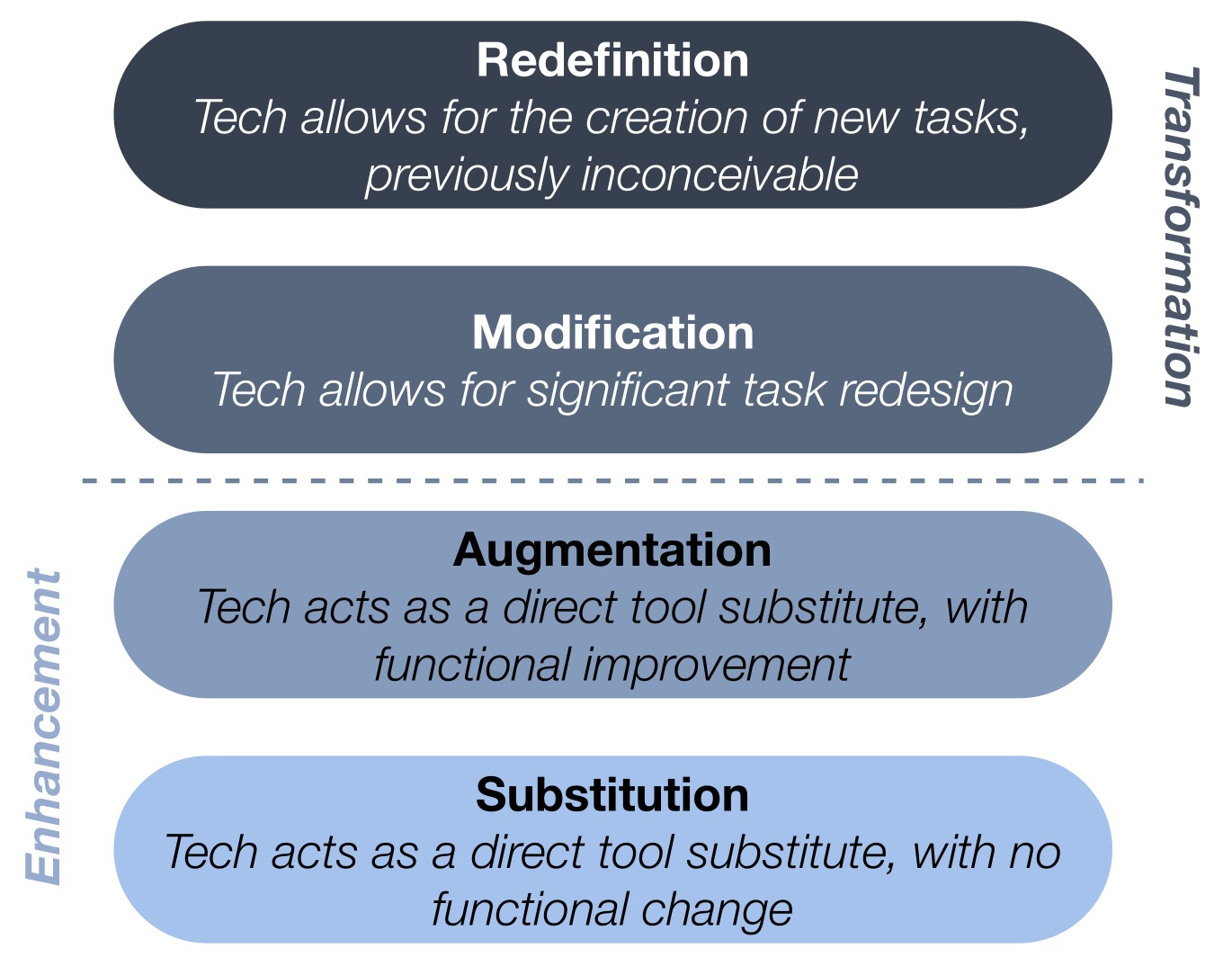
We got back to school with the SAMR model and began to look through that lens at our iPad integration. There were many examples of Substitution - students typing papers on iPads, or reading websites for research. There were some classes moving up the list to Augmentation, for instance posting materials on our Haiku pages to upload and use in a PicCollage project and Book Creator projects that include student narration and artwork. We have even reached Modification with some storytelling projects. But truly achieving Redefintion has challenged us in many ways. These types of projects are usually glorious, messy, engaging, and often unending - once you set the students loose absorb them for countless hours. iMovie trailers to teach peers to use Screen Chomp, iStopMotion projects to illustrate the growth of a redwood tree - mash ups of those and other apps in Explain Everything. Wonderful, noisy, chaotic class periods that bleed into recess and never seem to be done to the student's satisfaction. What does Redefintion lead us to? Discovering and nurturing passion!

Nurturing Passion

Angela Maiers' opening keynote, "Passion - the Difference Maker" started us out with enthusiasm for our role as educators, and empathy and appreciation for the genius in all those around us. Indeed, if we are to truly see the world as she does, then we will "honor people, always act as if the person sitting next to you has genius. Your (student or colleague) has a thought or idea that could change your life, remember that you are in the presence of genius." What would a classroom that had that belief at its heart look like? I think it would look like those crazy, messy class sessions we have had when every student was in the midst of expressing what they know, making their learning visible, using transformative tools that redefine class projects. This is passion with a purpose. Students who are allowed to act on their passions are happy, engaged and willing to take on difficult challenges as they joyously struggle to complete a project or reach a goal. When we nurture passion we redefine what it is to create and learn.

Tuesday, March 12, 2013

A Few Problems, Many Solutions

At this point in the year, the iPads are pretty integrated into our class's curriculum and daily routines.  We have prioritized exploring what we call "creativity apps" as opposed to games and apps with a singular focus.  Meanwhile in math, our class has begun utilizing Exemplars problems and rubrics to further student problem solving, math thinking, and math communication (see Merry Melvin's previous post for more on assessment).  Each problem is rich with multiple questions, levels, and solutions, and our students are finding them appropriately challenging.  We gave them free range to decide how to present their work.

Here are some solutions from the one about predicting the number of Sweethearts in a box:


And the one about planning the sleeping arrangements for class camping trip:


And our most recent problem about carpeting a basement:


Each solution requires a written explanation and a visual representation.  Some students decide to use the iPad to prepare both.  Some students use different apps depending on what they are being asked and some have a favorite they choose consistently.  Some students create their graphs and diagrams using physical materials such as Base Ten blocks or  tiles or puff balls and then document or enhance them by importing a photo.  Some students are comfortable emailing us their work and some students prefer working offline and turning in physical products.  We remain open to all of their preferences and meet them in their comfort zone.

While it was no surprise that many students elected to use their iPads to prepare their final solutions we were fascinated by the range of apps children chose.  Through regular explorations and many months of projects, Drawing Box, AiWriter, Educreations, Explain Everything, Keynote, and Inspiration Maps have become familiar friends. Left to their own devices, students have to decide whether the iPad and our creativity apps are the "right tool for the job" and which tool will serve them best.

Of course we do have some students who insist that the iPad is the best tool for them and it's really not .  But after a few experiences of being distracted and not completing their work on time, they learn that lesson too and change tactics.  At the beginning of the year, we set a few goals for our 4th grade 1-1 iPad program and progress is visible on many fronts.  To me, these are examples of students taking charge of their learning and our classroom becoming a place that fosters and supports creativity, independence, differentiation, and meaningful assessment.

Friday, February 8, 2013

“You can put down the iPad…”


OR.... “The Right Tool for the Job.”

 Here are two great tools.  You can accomplish a variety of tasks with either tool.  However, for some jobs, neither the hammer nor the pliers is the right tool.  You can’t paint a wall with either one – that requires a different tool.


 The same idea holds true for any classroom tool, they may or may not be the right tool for every single learning goal we set forth in our classrooms.  You probably wouldn’t use blocks to teach spelling just as you likely wouldn’t use magnetic letters to teach geometry.  So why then would we pull out iPads and try to apply them to every activity in our classrooms?  The answer is:  we wouldn’t.  These are the scenarios to consider when using iPads:


  • Sometimes iPads will be the right tool for everyone

Think about the Substitution level of the SAMR model created by Ruben Putendura. 

Everyone in your class might be on iPads to do research, to write papers, etc.  This shouldn’t be the most common scenario however.  It brings to mind images of students lined up in desks, plugged into computers, consuming rather than creating or collaborating.

  • Sometimes iPads will be the right tool for some
 This is where differentiation stands out and really helps your students with varied learning styles.  Consider your students when designing projects and offer options for the finished product.  It’s really the learning that happens during the process that counts after all.  Allow students to make a movie, create a cartoon strip, record an original song, make a book, etc., to demonstrate understanding.  

  • Sometimes iPads will be the right tool for part of a project            
We love to combine paper/pencil, iPad, manipulatives to investigate an idea or deepen our thinking.  This might be a project that involves creating a book about a math concept.  Students might use a math app or watch a math video (think Flipped Classroom) to get some background content.  They might then use math manipulatives to practice/demonstrate understanding and to find complexity.  The next step could be to choose how they articulate their thinking centered around this project – some might choose an iPad path, others might choose paper/pencil.

  • Sometimes iPads might not be the right tool for anyone or any part of a project

In the end, as with any learning goal you have, it is really all about your classroom culture.  What makes sense for your teaching style?  For a given group of students? For the subject matter? For any particular project?  Consider the types of thinking/learning you wish to have your students do: consider different viewpoints, find complexity, deepen understanding, make connections, create, imagine, question, observe, or investigate.  Consider how the iPad can add a dimension to your students experiences that they would not get any other way. (redefinition, SAMR)  And then, give yourself permission to let your students find their own individuality and their own unique way of articulating their thinking/learning.

Sunday, November 25, 2012

Space Junk

Teaching, Learning,  iPads and Space Junk
Several educators have asked me:

“Can you help me figure out how iPads can fit into my classroom curriculum?”  
The back of my iPad
I was emailed this question again this week and it made me flip over my own iPad looking for this sticker which I stuck on during the first week of our iPad program...over a year and a
half ago.  I would now replace my thinking about "teaching"
with "learning" since I'm not sure I want to create a classroom environment in which I am teaching to or filling up my students with content (I know that sounds like a vocabulary issue).  I do know that I want to create a classroom environment in
which we all are sharing our ideas, articulating our thinking, creating in unique and individual manners, digging into persistence, demonstrating understanding... generally
growing a culture of learning.


So how do iPads fit into a class curriculum?  No one ever asks how they can fit paper and pencils... or blocks...or a protractor...into their curriculum.  As educators, we try to turn our classrooms into places of learning (places that provoke and promote great thinking, creating, collaborating, problem solving, etc).  We provide the tools, structures, and routines to hopefully allow students and teachers and sometimes even parents to go about that learning.  As a kindergarten teacher, I have many varied tools in my classroom for a variety of learning goals including paper, pencils, and blocks.  I also have iPads.

This is how I now describe the way iPads “fit” into my curriculum:

iPads are not The Sun of our learning galaxy, they are just one of the planets in its orbit.  In other words, I don't put iPads at the center of every activity that I can.  Now that I have iPads available, everything does not revolve around their use. The Sun in this analogy is my classroom culture of learning and there are many planets (tools) in its orbit. In fact, the thing at the center of our classroom "universe" at any given time is the learning goal that I have set.  The tools I choose for the activity would be the planets.  The iPad might be the tool I (or the students) choose or it might not be.  Actually, this is a great place to replace that original question with what I'll call The First Step.  iPads are a great tool for learning - if you're still wondering about that check out Great Teaching is about the Process and The Challenge is On - you just need to take The First Step.  I like to refer to Dr. Ruben Putendura’s SAMR model. (Who doesn’t?).


The First Step is often easiest if you think about Substitution.  In our kindergarten class we used handwriting apps for our substitution step.  If you have older students, online research or writing might be a good choice for The First Step.


Keep all your planets in orbit around the galaxy of learning.  Now that you’ve taken The First Step, you and your students should be more comfortable and confident using this tool and ready to pull it out when and how it makes sense.  Using the SAMR model, you will find that iPads allow students alternate ways to share their thinking, demonstrate understanding, and go out of this world with creativity.

Apps are the space junk.  Ok, so this last part of my space analogy is a little bit out there... The apps really don’t matter!  If the iPads are one of the planets orbiting The Sun (learning), then the apps are all The Space Junk flying around the planets.

For example, there are many art apps that teachers can choose from.  It doesn’t really matter which one I choose as long as it works in my classroom.  We like Brushes and Drawing Box, but another teacher might find they prefer Scribble Press or Draw Free.  It doesn't matter which app works for me as long as I have been intentional in my app selection.  Also, some Space Junk is bigger than others - apps which should be orbiting every classroom (Book Creator, Evernote).  Sometimes Space Junk falls out of orbit and burns up in the atmosphere, meaning that sometimes an app no longer works and you just have to delete it.  In the end, it's really not about the apps at all.

We are not teaching children how to use iPads.  We are  creating a classroom culture of learning. Sometimes iPads are the right tool.  Sometimes they are not the right tool.  Students might start with paper and pencil and move on to iPads.  iPads might be just one part of a larger or longer process.  iPads might be the right tools for some students and not for others.  As with any tool we pull out in our classrooms, we need to think about what makes sense for the children and their learning. 

Monday, November 19, 2012

Just back from a great iPad conference, now what?

I am in my first year of using iPads in a fourth grade classroom and have just returned from the very energizing, exciting, and information-filled Leveraging Learning 2012It is all a bit overwhelming actually. I found most of the speakers' messages seemed to revolve around the idea that it is time to change the way you teach: make learning student centered, not teacher centered. However, the school year is moving along at its usual rapid pace and I do not want to wait to experiment while I reflect on all of the big ideas (mass customized learning, SAMR model, 21st century learning, and many others). Therefore I have decided to follow the advice of one of the most inspiring presenters, Jennie Mageira. She suggested:

1. Make lots of mistakes: pick one thing you learned here and do it. She talked about how everyone who presents at iPad conferences usually has made lots of mistakes on their journey. They make it look smooth and like they know just the right ways to create wonderful learning experiences for their students, but what they do not tell you about is all of the times that their plans did not work. That was actually really great to hear.

 2. Foster teacher leadership: as you do that one new thing, write about it, tell what it is like to be at the beginning of the journey.

 3. When in doubt, ask a student: set up a student "Genius Bar", they can figure it out. She has several students play with a new app that she is thinking of using. Once they have had some time with it she has them go out to the other students in her classroom and teach them how to use it. This is allowing her students to take charge of their own learning. When my students have been working on the iPads I have noticed how quickly they figure out who can help them solve any problems that they encounter. They quickly figure out that it is usually not the teacher, more often it is a classmate.


So, as I return to my classroom, I will be busy trying my first experiment based on what I learned at the conference: to provide students feedback on their handwritten pieces by using several different apps (docAS lite and showbie). Nothing very revolutionary, but it feels like a good first step.

Thursday, November 15, 2012

Flying to China

Since our 4th grade Ancient and Modern China curriculum was implemented, a "flight to China" component has often been included.  Google Earth is a tool many teachers were familiar with, and both the Smartboard and netbooks have been effective in using it to explore the geographic landscape.  I am not that familiar with the program and all of its capabilities, but I have a new Nike approach to teaching with technology ("Just Do It").  So I showed my trusty Powerpoint on why we study geography and ended with two exploration questions for them to use while they looked at China on Google Earth with their iPads:  "What barriers do you see that would have made traveling to China in ancient times difficult?"  and "Where was China the most vulnerable?" 

It worked well (with only one kid who kept looking for his house instead.).  They explored the boundaries, found the Himalayas, determined darker blue water was deeper, found the bulk of people and cities along the Eastern coast, decided the north was a good place to attack from (Who said attack? This is a Quaker school!), and figured that was where we would find the Great Wall.  Good times! Now what?   

We have a bunch of other activities in landform development and mapmaking coming up, but I would like to keep using this app too.  One plan is to use it while making our 3-D plaster terrain maps.  They can use it to determine where to place the mountains, valleys, and other features. The variety of community pictures of the places we study is very cool.  I have found tours of Mt. Everest and other peaks. What other things are there "tours" of?  Any other ideas about how to integrate Google Earth into our geography study? 


Thursday, October 11, 2012

What is the Hallmark of our iPad Program?

In our second year of using iPads in the classroom, we are are recognizing how much our vision of the role iPads would play has evolved. Had you asked us last year, “What is the hallmark of your iPad program?” we would surely have described our successes teaching handwriting to kindergarteners and how helpful teachers find Evernote for classroom documentation. Even then, we would have insisted that it’s not “all about the apps”, but rather it’s about including iPads as a classroom tool when it fits the curriculum, or a moment where the iPad offers the best option for learning.

When we first began to teach with iPads, we sought out apps that solved the challenge of improving how we teach specific skills in Kindergarten, beginning with handwriting. This led to the inevitable search for the “best app” for the purpose, and we learned a lot - specifically we learned that there is no perfect app, and that perhaps our search for such a thing was distracting us from the real opportunities iPads provide.

With early writers and readers, we want to create multiple ways to help them share their knowledge and make it accessible to others. We use Book Creator to make books about their experiences in class and on field trips. We used iStopMotion to record events in the the classroom, and to tell stories in a new way. We create our own illustrations for our stories using Drawing Box.

As we began this year, we realized that we had a very different view of how the iPads would be used. We have expanded the program to include a set of iPads in each first grade, and 1-to-1 iPads in fourth grade. We chose a few apps, and grouped them in a folder on the iPads called “Creativity”. This group includes those already mentioned, and writing apps, presentation apps, and photography apps.. Students are using their iPads to create written projects, to do research and take notes, to express themselves, create collages, prepare books to read aloud to younger students, and to create presentations. The iPads are thus becoming a useful, accessible tool that fits the need when the need arises. The single-use, single-purpose apps are rarely, if ever called for.

There seems to be a divide among iPad teachers between those who seek the “killer app” for every job, and those who seek to find the apps that offer the most open-ended, creative possibilities. This is the similar to the divide between teachers that seek the “best” curriculum package to teach a subject and those teachers who pull from all the resources they find, and embellish their curricula with their own touches to fit their students’ needs and to match their classroom and school culture.

The hallmark of our iPad program? Encouraging creativity and self- expression; offering multiple ways for our students to make their thinking visible. It is so simple, and so rewarding!

Thursday, August 2, 2012

Slice It!


My family and I have recently discovered an app that we can’t stop playing! 
Slice It! (paid version) or Slice It Begins! (free version) by Com2Us is fantastic.  The point of the game is to slice various shapes into equal pieces.  In the beginning, the shapes are simple enough so the player can understand what to do in the game.  As the player progresses, the shapes and the slices become more challenging.  The directions are simple to understand and each page gives the player a “tip” at the bottom. When a shape is sliced, the player can get from 1-5 stars and the app encourages the player to try again to get 5 stars.  If the player fails to slice even pieces, the follow up page shows why the first try was incorrect.  When the player earns 5 stars on a shape, he or she earns a bonus “hint” to use in the future.  Hints can be used if the player is stuck and not sure how to proceed.

What We Like

·         Simple directions

·         Explains mistakes; encourages player to retry

·         Music can be turned off

·         Shows percentage of each piece sliced

·         Shows player that equal pieces can be different shapes

·         Challenging, yet not frustrating

What We’d Like to Change

·         Only keeps track of one player; would be nice if multiple players could track progress

·         Ability to move lines without having to “undo” (a drag and drop)

Tuesday, July 10, 2012

Our app list...


Here is the 2011-12 kindergarten list - some of the basic apps on my student iPads and couple of words on why (a great place to get started):


iStopMotion - even 5 year olds can create really cool "stories"  - read more here


 iPhoto - so we can edit our photos and create quick journals of field trips, activities, projects


iWriteWords - good for handwriting practice - read more here


Word Wizard - for building words, has many wonderful lists of words already built in (Dolch Sight words, numbers, animals, foods, CVC lists based on specific blends, letter sounds, etc) and lets you enter your own lists - read more here


Montessori Crosswords - fun reading/spelling practice - allows the selection of targeted sounds such as short vowel sound words, specific consonant sounds, digraphs, silent letters - read more here


Book Creator - to give the students the tool to be completely creative in telling a story - read more here


LetterSchool - fantastic handwriting practice - read more here


Motion Math Zoom - interactive number line - great for thinking about number relationships - bigger, smaller, number order - read more here


Motion Math Hungry Fish - fishy way of approaching number relationships/addition - read more here


Moofy Patterns - for practicing patterns


Motion Math Wings - new way to consider "which is more" using a little kinesthetic learning


Scribble Press - for letting the creativity flow (don't miss the outstanding marker wall!)


Big Seed - wonderful problem solving app which gets kids working together, having thinking conversations - read more here


KickBox - a great app for practicing persistence, problem solving, collaborative pairing - read more here


Strip Design - think wordless books in a storyboard format for 6 year olds - a great app for getting the creative juices flowing


StarWalk - because there are wonderful stories in the stars...and a little fun too!  read more here


Bumpling - more problem solving, logical thinking, and possibilities for collaborative efforts - read more here


Tuesday, June 19, 2012

LetterSchool - iWrite Words

I think that one of the easiest places to start using iPads is during handwriting times.  You can hand a kid an iPad with a handwriting app and they can practice fairly independently.  It may not be the area that showcases any of the best reasons to use iPads (fostering creativity, allowing for problem solving, encouraging persistence) but it is an easy, safe place to start.  (perfect for tentative teachers who are not sure how they'll get iPads into their program or those who are new to this technology and need to wade in - not dive in)

Here's what we do:


We start with iWrite Words by gdiplus.  It is easy to use, has pleasing and simple graphics, and gives both the letter in stroke order, but also offers the option of spelling words.


We add on LetterSchool by Boreaal.  We love this app!  Just like iWrite Words, LetterSchool is easy to use and has really sharp graphics.  LetterSchool adds a little extra.  It offers three steps to learning each letter.  First, the student follows the starting point for each stroke.  Next, the student needs to drag their finger along the letter outline in stroke order.  Finally, the letter disappears and the student must write the letter unaided.


What we like:

*both apps are guided and self correcting - in other words, the app won't let the student write anywhere outside of the letter shape - you can't use the wrong stroke order or scribble

*neither app is over congratulatory and both have a nice little "payoff" after correctly writing a letter - a little interactive piece that doesn't drag on too long

*since we use Handwriting Without Tears, we like that iWrite Words is similar to that font and we love that LetterSchool lets us chose from HWT, D'nealian, and Zaner-Bloser fonts

*both apps allow for lower case, upper case, and numbers

What we'd like to change:

*I'd love to get a choice of fonts on iWrite Words

*I wish that there was an easy way (right on the home screen or on one of the corners of the app) to reset progress - this helps in a classroom setting where we often have students sharing iPads

*I wish that iWrite Words would add a phonics component - perhaps a word that features each letter and its sound

Why we really love these handwriting apps:


It's so difficult to find an app that can do something better than the teacher can.  These apps do just that.  I can't stand over 24 students and simultaneously know that they are using proper pencil grip and stroke order.  I only can know that about the 1 or 2 students that I can see at any given time.  If students are working on an app that won't let them practice their letters incorrectly - then I can be assured that good habits are being reinforced and not just for the one student that I happen to be watching.

Tuesday, January 10, 2012

Criteria for app Selection

In a nutshell:

We look for three basic qualities in an app (listen up app developers):

*must do more than one thing
*needs to have a settings option so that we can change/personalize it
*should not be over congratulatory (no wild applause/cheers)


Beyond that - we are looking for apps with a dynamic quality so that creativity, thinking, and problem solving come into play. We don't want to apply technology simply for the sake of applying technology.

Friday, November 18, 2011

Evernote!

Evernote is a great tool for classroom documentation.

It used to be that the other kindergarten teachers and I would walk around the classroom with a clipboard and scribble notes about student learning, thinking, challenges, and any other skill or ability that our children were demonstrating. By the time report writing came around, I had amassed quite a stack of scribbles and post-it's. It was really nothing that I could share with anyone until after I spent some time sifting through the scribbles and writing drafts of my reports. Using Evernote on our iPads, we can do more and we can share it all. Having created one Evernote folder for each student, I can now walk around the classroom as learning is happening and capture the students articulating their thinking. Evernote allows teachers to type notes, take photos, upload photos, and record audio.

Now, using Evernote, I am able to take a photo of a student's work, and then have a conversation with her as I record her thinking. I can make her thinking visible. (to me, to her, to another teacher who was not present, even to her parents if needed)

Using tags, I can come back later and search for a particular student's work. I can search for all math pattern work or all reading levels or any other category of learning that I tag to find out how we are doing as a whole class. I can save emails and documents that pertain to a student's learning or challenges in their individual Evernote folder.

I can take notes during parent conferences - using my tablet pc and Evernote I can even ink notes in Evernote during meetings and conferences. (dear Evernote, please make inking possible on the iPad version...)


Why this is a good idea:
-use evernote to snap photos of students at work and then write your notes directly onto the note for that photo
-use a new note to compose thoughts for reports from anywhere in your classroom, another classroom, on a field trip, anywhere
-use audio recording in evernote for classroom documentation, both student-led and teacher
-create a folder in your evenote binder for each student at the start of the year
-use evernote to add other documentation on each student as needed - emails, documents, photos, etc.
-open your evernote folders from any computer to write reports or updates or to check for assessments
-share your folders with other teachers, support people as needed
-keep every artifact about your students together, paperless, and accessible from anywhere